 A good tutorial on setting up Skype and Audio Hijack Pro to record telephone interviews. Includes detailed port forwarding to eliminate use of super-nodes and practical stereo channel setup for easy post processing. By Doug Kaye and Paul Figgiani on Slideshare.
Tag Archives: tech
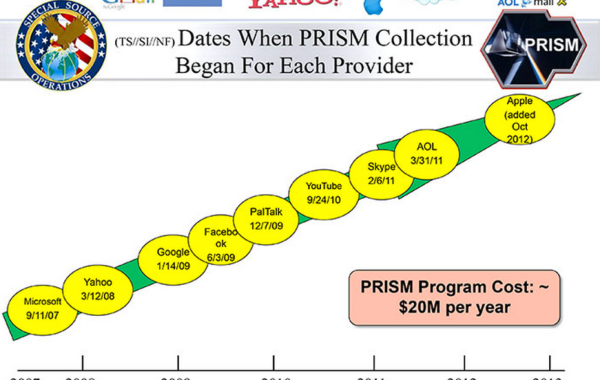
How Microsoft handed the NSA access to encrypted messages
• Secret files show scale of Silicon Valley co-operation on Prism
• Outlook.com encryption unlocked even before official launch
• Skype worked to enable Prism collection of video calls
• Company says it is legally compelled to comply
By Glenn Greenwald, Ewen MacAskill, Laura Poitras, Spencer Ackerman and Dominic Rushe
Read on theGuardian site.
http://www.theguardian.com/world/2013/jul/11/microsoft-nsa-collaboration-user-data

A Fix for Mac OSX Archiver Hanging Up – Mountain Lion 10.8.2
The Mac Archiver is Apple’s built in archive utility that handles ZIP archives. Recently, when I tried to decompress a downloaded ZIP file the Mac Archiver started up and then became unresponsive. I found the following solution corrects the problem –
{C}
1) Using Finder, open the Applications folder then the Utilities folder inside the Applications folder. Run Disk Utility – In the left pane select your system disk – on the right you will see the First Aid tab. Select REPAIR DISK PERMISSIONS near the bottom. Wait until it finishes.
2) Using Finder click on the GO dropdown menu and select Go to Folder. Enter ~/Library – that’s a squiggle forward slash and the word Library (uppercase L).
3) Open the Preferences folder and move the following files to the trash-
com.apple.archiveutility.plist
com.apple.archiveutility.lockfile (may or may not be there)
4) Restart your computer and test it. Be sure to rstart before running Archiver again.
How To Delete Files or Folders from a Time Machine Backup – Update
Feature no longer available.
Apple has removed this capability. For the reasons in the original post below it can at times be necessary to remove files not just from the current active drive but from all backups as well. Now that this capability is no longer available on Time Machine,
In modern versions of macOS (Big Sur and later), Time Machine drives are formatted as APFS, which uses “snapshots.” By design, these snapshots are read-only and immutable.
This means you can no longer delete individual files (like a specific large video or a sensitive document) from a Time Machine backup without deleting the entire backup for that specific date.
Recommended Solution
Remove the Time Machine drive with sensitive information and lock it away.
Format a new Time Machine drive and start fresh using method 3 below.
Alternative
Exclude a folder from ™ backups and use a non Time Machine backup method that allows for file deletion for just that one folder.
Here are the only working methods to achieve your goal, ranging from “Specific” to “Nuclear.”
Method 1: Delete the Specific Backup “Instance” (Terminal)
If you know which specific backup dates contain the file you want to remove, you can delete those entire backup instances. This keeps your other backup dates intact.
Open Terminal (Applications > Utilities > Terminal).
Type the following command to list all your backups:
tmutil listbackupsFind the specific date/timestamp of the backup you want to remove.
Run this command to delete that specific backup:
sudo tmutil delete -d /Volumes/[YourBackupDriveName] -t [YYYY-MM-DD-HHMMSS](Replace[YourBackupDriveName]with your drive’s name and the timestamp with the one you found in step 2).
Method 2: The “Nuclear” Option (Start Fresh)
If you need to ensure a sensitive file is 100% gone from all history, or if the file exists across hundreds of snapshots, the only practical way is to wipe the drive and start over.
Open Disk Utility.
Select your Time Machine drive.
Click Erase (Format as APFS).
Set it up as a new Time Machine drive.
Note: This deletes your entire backup history.
Method 3: Prevent it from happening again (Exclusion)
To ensure this specific file or folder is never backed up again in the future:
Open System Settings -> General -> Time Machine.
Click Options.
Click the + button and select the folder or file you want to permanently exclude.
Why was this removed?
In older versions of macOS (HFS+ format), Time Machine used “hard links,” which allowed users to delete a file’s link without breaking the file system. Modern APFS backups are block-level snapshots. If Apple allowed you to delete a single file from a snapshot, it would break the cryptographic integrity of that snapshot (and potentially the chain of backups following it), risking total data corruption.
Why (original post)
Mac OSX Time Machine software is my favorite method for backing up data. If you use a Mac there is no excuse for not using this built in utility that keeps a backup of your data on an external drive, another Mac, a Apple Time Capsule or, with some tweaks, a network storage server.
Like any back-up software from the dawn of back-up software, deleting a file on your computer will not delete the file from your Time Machine back-up. A good back-up solution allows you to recover from an entire disk drive failure as well as recovering one file or even one email that you accidently deleted.
There are times when you really do want to not only delete a file or folder or email but to purge it from your back-ups. For example, you work on a project that involves material covered under a confidentiality agreement that requires all material to be returned or destroyed at the end of the project. Just deleting the files and folders on your computer will still leave copies on your back-up drive leaving you in breach of the agreement and potentially liable for damages if the drive is stolen and the information disclosed.
Back to School – Notepad and Audio Recorder for Mac
Free or inexpensive software can make taking notes during class lectures more effective. They accomplish this by recording the lecture as you take notes. Later, by placing your cursor anywhere in the document, you can play the audio recorded at the time that note was taken.
These programs make it possible to add notes that were missed during a fast moving lecture and remove the pressure of constant note taking when you just want to focus on what's being said. When reviewing your lecture notes, if something isn't clear, you can play the audio from that point in the lecture.
Microsoft Office Mac Home & Student $99 3 license Family Pack Amazon
Audionote for Mac – $2.99 – 5.99 on Mac App Store
Audionote for Windows $19.95 by Luminant
Pear Note – all in one Mac Audio & Notes program $39.99 Mac App Store
Word 2007 for Windows has the recording feature although it must be added to the Quick Access Menu. Word 2010 for Windows does not have the recording feature.
If you have Microsoft Office for Mac you will find this feature by opening a new or existing document and selecting the NOTEBOOK view.
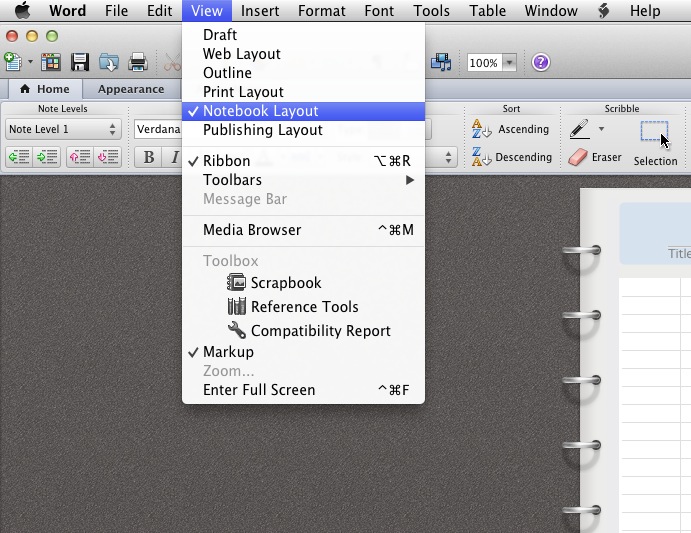
then select the AUDIO tab to set up recording
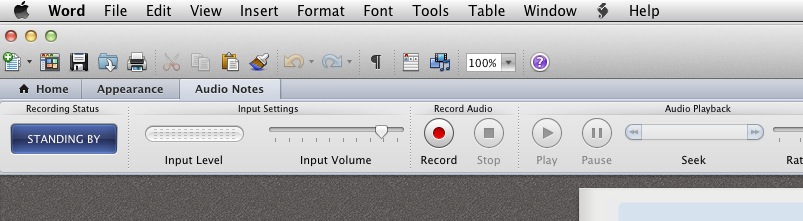
Know of others? – leave a comment
How To Transfer Mac Mail Junk Training Data to another Mac
Back Up or Copy Your Mac OS X Mail Junk Mail Training Data
Like most modern email clients, Mac Mail includes a junk mail filter that can be trained for more accurate filtering. By clicking on a JUNK or NOT JUNK button the system "learns" what emails to move to your Junk folder, and which ones are legitimate. This is sometimes referred to as separating the SPAM from the HAM.
Using an IMAP mail server will keep your email synchronized on multiple computers – delete an email on one computer and it will be deleted from the other computer(s). However IMAP does not do the same for the junk training data. To avoid the hassle of retraining each new mail client and to minimize the chance that real email will be missed by being placed in your Junk folder and missed, you can manually move the training data from one Mac mail client to another.
To create a backup of your Mac OS X Mail junk mail training data or move it to a new computer:
- Using Finder, navigate to Username/Library/Mail/V2/MailData
- Find the file LSMap2
- If moving the file to another Mac, rename the LSMap2 file on the new computer to LSMap2.old
- Copy the LSMMap2 file either to a back up location or the new Mac.
Open Mail and test.
Defending Privacy at the U.S. Border: A Guide for Travelers Carrying Digital Devices
 "Our lives are on our laptops – family photos, medical documents, banking information, details about what websites we visit, and so much more. Thanks to protections enshrined in the U.S. Constitution, the government generally can’t snoop through your laptop for no reason. But those privacy protections don’t safeguard travelers at the U.S. border, where the U.S. government can take an electronic device, search through all the files, and keep it for a while for further scrutiny – without any suspicion of wrongdoing whatsoever."
The EFF has an excellent article by Seth Schoen, Marcia Hofmannand Rowan Reynolds online here or you can download the PDF.
Restore Lost Buetooth Mac OS X 10.6 Snow Loepard
A friend lost their Apple bluetooth keyboard and Logitech bluetooth mouse. Bluetooth controls were grey – computer appeared to not see the bluetooth hardware. They recently updated from 10.5.8 to 10.6.
Solutions was:
MacBook (13 inch, Late 2008), MacBook Pro (15-inch, Early 2008), and MacBook Pro (17-inch, Early 2008)
If the computer is on, turn it off.
Disconnect the AC adapter and remove the computer's battery. ( also disconnect all other cables)
Press and hold the power button for 5 seconds and then release the button.
Reconnect the battery and AC Adapter.
Press the power button to restart the computer
This resets the "SMC" see article http://support.apple.com/kb/HT1411